SIP ITSP PSTN Access Lab
Introduction
In this activity we will configure your Asterisk server to contact the Public Switched Telephone Network (PSTN) using a SIP trunk to an Internet Telephony Service Provider (ITSP). This would normally be a service which you would pay for incoming and outgoing (termination and origination) connections to the PSTN and which you would access over your regular Internet connection. In our case you will connect to a simulated PSTN connection which will be able to call several test numbers and other pods but is not actually connected to the real PSTN.
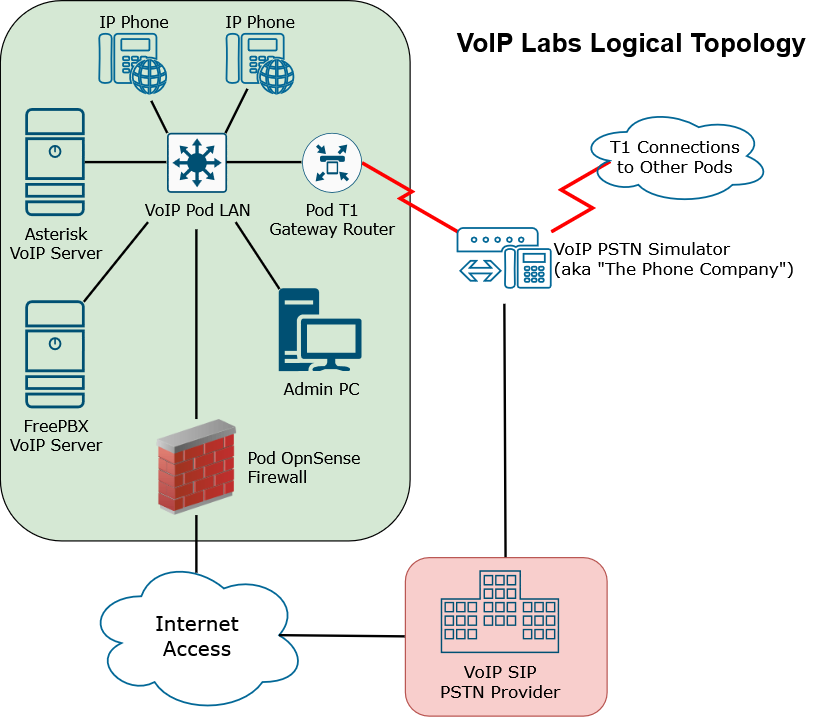
Physical Wiring
-
Connect for port Gi1/0/24 on your pod switch to the correct port on the classroom switch identified in the table at the top of the lab. This connection will make a layer 2 connection from your virtual VoIP Pod LAN on Netlab to your physical network switch.
-
Sign in to a PC in the classroom. After you have successfully signed in connect that PC to port Gi1/0/1 on your pod switch. The PC should now be on your VoIP Pod LAN and be able to ping your Asterisk server and access your OPNSense Pod Router.
Of course, make sure you have an active reservation in Netlab and that your Asterisk server is up and running! It’s strongly suggested you connect to and work on your Asterisk server over SSH from this point on instead of trying to use the Netlab console. Cut and paste support works in PuTTY which it does not in the Netlab console and can transfer files in and out of your server using Filezilla. You can use either your classroom PC (once connected to your VoIP Pod LAN or the Admin PC in Netlab which is always on that network). -
Connect both of the VoIP phones to your VoIP Pod Switch as well and ensure they have IP addresses from your router.
IP Addressing & Phone Numbers
These are the IP addresses and phone extension numbers assigned to your pod which you can use for your pod.
| Pod | Phone Extension Range | VoIP Classroom Switch Uplink Port | T1 PSTN Numbers Assigned | ITSP PSTN Numbers Assigned |
|---|---|---|---|---|
Pod A |
0100-0199 |
Gi1/0/1 |
5105550100-5105550199 |
5104440100-5104440199 |
Pod B |
0200-0299 |
Gi1/0/2 |
5105550200-5105550299 |
5104440200-5104440299 |
Pod C |
0300-0399 |
Gi1/0/3 |
5105550300-5105550399 |
5104440300-5104440399 |
Pod D |
0400-0499 |
Gi1/0/4 |
5105550400-5105550499 |
5104440400-5104440499 |
Pod E |
0500-0599 |
Gi1/0/5 |
5105550500-5105550599 |
5104440500-5104440599 |
Pod F |
0600-0699 |
Gi1/0/6 |
5105550600-5105550699 |
5104440600-5104440699 |
Pod G |
0700-0799 |
Gi1/0/7 |
5105550700-5105550799 |
5104440700-5104440799 |
Pod H |
0800-0899 |
Gi1/0/8 |
5105550800-5105550899 |
5104440800-5104440899 |
Pod I |
0900-0999 |
Gi1/0/9 |
5105550900-5105550999 |
5104440900-5104440999 |
Pod J |
1000-1099 |
Gi1/0/10 |
5105551000-5105551099 |
5104441000-5104441099 |
| If you previously used different extension numbers for your phones you should probably change to using these extension numbers for simplicity. |
Instructions
-
Update your pjsip.conf file to add the required registration, endpoint, aors, auth, and identity sections required to connect to your ITSP.
-
Make sure you have up to date external media and signaling addresses in your PJSIP configuration file.
-
Add appropriate firewall and NAT forwarding rules to your OPNSense router to forward ports 5060 (TCP and UDP) and 10000-20000 (UDP) to the IP address of your Asterisk server.
-
Modify your extensions.conf file to allow internal extensions to place calls out to the PSTN through the sipPSTN SIP device (which is the connection to your ITSP) if the number begins with a 9 for an outside line. If you had a working T1 SIP gateway PSTN configuration this will just involve changing which endpoint those calls are being directed to.
You will want to think about all the different types of numbers someone could call and create dialplan rules in Asterisk to handle all of them. For some of these you will need to use pattern matching, for others like 911, you probably want to match the exact number for dialing timeout speed reasons. Most states now require phone systems to allow people to dial 911 directly, without needing to dial 9-911 for an outside line. You should program your system to call 911 on the PSTN for BOTH 911 and 9-911. -
Try placing calls out to the PSTN and make sure things are all working and that they are going through the ITSP and NOT the T1 connection.
-
Test at least the following types of calls:
-
Local calls (both by dialing 7-digit numbers and 10-digit numbers)
-
Long distance calls (calls to a different area code than the 510 area code, and which begin with a 1)
-
Toll-free numbers (1-800, 1-888, etc.)
-
Per-minute premium charge numbers (1-900)
-
Emergency Services (911, 9-911)
-
Directory Assistance (411)
-
International Numbers (Numbers beginning with 011)
-
-
-
Verify all your toll-fraud preventions you had in place for calling out from various types of extensions to the PSTN for the T1 gateway are still working.
-
Verify your extensions.conf file is still setup to allow calls FROM the PSTN to your internal phones (each extension has a phone number like 510444XXXX where XXXX is the extension number when calls come through the SIP PSTN provider). Note that the phone number for calls coming in over SIP starts with 510-444-XXXX which is a different prefix then when calls came in over the T1. This will require adding these new incoming numbers to your dialplan so that Asterisk can route the calls appropriately.
-
Find another pod who has calling out to the PSTN working and try placing calls from each pod to the other pod to verify incoming PSTN calls are working. You can also try calling the the test number at 510-555-0000 and hanging up as soon as the call is answered and you should get a call back from the phone company test system.
Cleanup
-
Safely shutdown your Debian system
-
Erase your switch/router configuration
-
Put away all equipment and cables. Be sure to note which phones you have so that next week you’ll be able to get the same five phones.
Document Build Time: 2026-09-30 15:37:48 UTC
Page Version: 2026.08

This work is licensed under a Creative Commons Attribution-ShareAlike 4.0 International License